Friday, December 26, 2008

Web Hosting - Ten Basic Tips

0 comments

Web Hosting - Ten Basic Tips

Introduction
This page contains a testimonial of my extremely poor experiences with a particular web host, drawing upon these experiences to highlight ten basic rules for choosing a web host. The aim of the page is to help prevent you from making the same mistakes I did.
So what is a web host? A web host is a company which provides a valuable service on the Internet: the physical storage and distribution of website pages on behalf of website owners. Basically they provide the hardware and software, and website owners provide the information. For a certain fee, the web host agrees to rent website owners space on their server, and the accompanying bandwidth they provide for Internet users the world over to download web pages from their server.
I threw this page together as another resource on TweakGuides.com to help out potential webmasters in perhaps choosing a web host more wisely than I first did. A wrong choice can have terrible consequences for your website and its reputation. Keep the following in mind if you're considering purchasing web hosting services on the Net.

Ten Basic Rules

Suffice it to say, Oktagone.net is the web hosting company which kicked off the creation of this page. Their absolute lack of professionalism, and the (almost irreparable) damage they did to TweakGuides.com still makes me angry, and it's been quite a while since I escaped their clutches! We will use Oktagone to neatly demonstrate what makes a truly terrible web host.
The basic story goes like this: I was looking for a web host in April 2004 for my new site TweakGuides.com. As with most websites, things start out small, so I didn't want to invest in a dedicated server package costing hundreds of dollars per month. I just wanted some cheap but reliable shared web hosting (that is my site would be on the same server as many other websites, lowering costs). Oktagone was recommended to me because they were cheap and supposedly reliable. Basic Rule Number One - Never rely on one or two pieces of advice when purchasing hosting services. Aside from the fact that people may not really know what they're talking about, nothing replaces decent research when choosing a web host. Some unscrupulous hosting companies even resort to joining forums under pseudonyms and then giving their own services glowing testimonials to con unsuspecting potential customers (though I am not suggesting Oktagone.net did this).
So I joined Oktagone in April 2004 and instantly noticed the unprofessional setup - they had no formal billing system. You had to PayPal your monthly fee to them, without any way of checking your account balance, the actual service you had purchased, when your next bill was due (or overdue) etc. In fact at one point I upgraded my service (and paid extra) yet still got the old service for a month or two until I noticed the difference in my bandwidth allowance. Basic Rule Number Two: - Never rely on a web host which can't even automate or administer the most important aspect of a business: billing and payments!

Then there were the outages...long and short. Sometimes only a couple of hours, sometimes a day or two. Basic Rule Number Three: - Never ever rely on a web host which has "mysterious" outages frequently, always promising that it is "just a glitch". Your website relies on a smooth and consistent presence on the Internet to be successful. Would you frequent a supermarket or a bookstore which had odd trading hours and/or which regularly closed down without any word of why? Unreliable web hosts can cause irreparable damage to your website's traffic. Of course if you actually earn revenue from your site, this can be even worse - you will lose income, sometimes for days a time, and you won't be able to do a thing about it since the web hosting company controls if and when your site comes back online.

After many months of problems with Oktagone, there was a relatively stable period during which my site flourished. I topped 200,000 unique visitors a month, millions of hits and a reputable presence on the Internet. I thought things were good because I didn't have any hosting problems to damage my growing reputation. I now know this was the calm before the storm. Oktagone had a final blow lined up for my site: Oktagone was actually a reseller - that means they bought services from another company, and resold it at a profit. It turns out Oktagone did not pay their own bills for two months in a row, so the main company simply shut down all their servers. I suddenly found my site was offline and inaccessible without a single word of warning, without any explanations. It remained offline for around two days, until which time I found this thread on the WebHostingTalk Forums, detailing the debacle which had befallen all of Oktagone's US-based customers. Within a day of the thread appearing, Oktagone sent out an official email saying that the problem was due to a "power outage in New York", and that a technician was on the way to resolve problems within 36 hours. Needless to say this was a blatant lie, and Oktagone's owner later admitted - when confronted with the facts by the reseller on WebHostingTalk Forums - that he had simply not paid his bills and the servers had been shut down.

So some more things to note: Basic Rule Number Four: - If your host goes down for more than 24 hours, start getting very worried. This is not normal, and if you have had no warning, and no explanation, it is even worse. At this point start shopping for another webhost immediately. That is precisely what I did on the 2nd day. Basic Rule Number Five: - If you do receive a story about why your site is down, try to corroborate it with other people on the same host. Use the WebHostingTalk Forums for example to search for and/or post a question on whether the web host is down and why. Don't trust the web host to tell you the truth about the situation, and don't just sit and wait. Basic Rule Number Six: - Once your site is down for several or more days, don't wait - switch your host. Simply put, if your web host hasn't taken steps to protect against long outages by having appropriate emergency backup systems, then you need to get away from them ASAP. In Oktagone's situation, their outright lying was bad enough, but the fact that they left some of their customers offline for over two weeks (!) means that I will never trust them again, especially given they still maintain the same owner.

I was very lucky to get away from the situation relatively unscathed. I shopped around for, and quickly found another cheap (but more reliable) host called HostingOnNet.com. I was able to do so thanks to some simple precautions: Basic Rule Number Seven: - Always back up your website regularly to your own PC. I made daily backups of every page, picture and file I uploaded to my site onto my hard drive, so my backup was literally up-to-date and readily accessible. Others hosted on Oktagone were not so lucky, and had to rely on the generosity of the reseller to turn the servers back on for a while so they could backup their data. Incredibly, during this period Oktagone actually went out of their way to prevent customers backing up their data, which was thwarted by the reseller which owns the servers.

However one of the most important tips is a common mistake made by people new to web hosting: Basic Rule Number Eight: - Never register your domain name through your web host. This is the single biggest problem Oktagone customers ran into. Those that had also purchased their domain name through Oktagone couldn't switch to another web host with their existing domain names. Why? Because the Oktagone Domain Name Servers were offline, meaning that the addresses to which the domain names pointed to couldn't be changed! This meant that some sites were down for a week or two or more with no recourse whatsoever. Luckily I had registered TweakGuides.com through another domain name seller than my web host (Godaddy.com), a very smart thing to do and strongly recommended.

Ok so what happened in this situation. What was the permanent damage through all this melodrama? For starters I had a lot of concerned people trying to contact me during what was a peak period in my site's usage wondering what had happened. Yet of course because my site was physically offline, they couldn't email me. I couldn't put up any form of notice to tell them why TweakGuides.com was now inaccessible. Two days of this was bad enough, but two weeks would have broken my site's back. Some unscrupulous people had already tried during earlier outages to rip off my guides and host them on their own sites with the explanation "TweakGuides.com is no longer online, so we are 'archiving' their guides." Gee, how generous of them - all without my permission of course. I lost a few dollars as well because I'd paid in advanced, and despite assurances of getting a refund, to date Oktagone has not returned a cent, nor responded to my emails politely requesting a refund. This is despite the fact that I did not use one day of the months' hosting I paid for, and that they had already said they would pay me a refund (in principle) on the WebHostingTalk forums. Another telling sign of what kind of people run these sort of businesses, and my Basic Rule Number Nine: - Never pay in advance for hosting, even if it entails a large discount. You may find you lose all your money if/when the host goes down forever, and/or if they decide simply not to refund you. Consumer protection agencies may help you recover your money, but for small sums below a few hundred dollars you're going to spend more money trying than the amount you'd ever get back. Pay for your hosting by the month, and do it through a Credit Card so you can always cancel the payment if need be, or turn to the Credit Card company's fraud protection mechanisms to prevent losing large amounts of money.

The whole experience was very unpleasant, and for a site like TweakGuides.com which is still firming its reputation around the Net, one which I would have gladly done without. I hope the information above helps you decide on an appropriate web host. I personally did a fair bit of research before finding another host after Oktagone, although being placed in a pressure situation (i.e. my site was already down for two days) didn't help. My final rule is simple Basic Rule Number Ten: - Don't wait until something bad happens - if you're not happy with your current host, start researching for a better host straight away. Even if you decide to stay with your current host, at least you will have some options in case some emergency comes up and you have to switch at short notice. Never make the decision in a pressure situation as you're likely to just switch to another poor quality host.

Well, that's pretty much it from me. I got to tell my story, and hopefully provide ten basic tips at the same time! Hope you found it handy.


Update on Oktagone: People who have been unfortunate enough to recently sign up with Oktagone are still running into terrible problems, including loss of income. I strongly recommend you steer completely clear of Oktagone Hosting. As you can see, if you find negative accounts of web hosts from the past, chances are they haven't changed much in the intervening period - once a bad host, always a bad host.


Update on my Hosting

Due to the growing popularity of my site, and the demands it places on a host, I now use Virtual Private Server hosting. I tried DEHE.com for a few months, and unfortunately their setup wasn't stable. Site load - and hence responsiveness - would fluctuate noticeably for no apparent reason, and then there were several outages which although due to hardware failure, were just too much for me to deal with. Although the support was good, and the owners were genuinely trying to resolve problems, it became embarrassing to explain to my readers why the site was constantly slow or offline, so I left DEHE.com after a few months.

Now I am hosted by EuroVPS who have provided a much more stable server configuration - no doubt due to their greater experience and skills with VPS technology. My site load is consistent, even though I am now getting the most traffic I've ever had. The site never becomes totally unresponsive or extremely slow, and their support is very professional and resolve problems quite fast. Though they are not the cheapest around, they are definitely worth the money. Remember, Cheapest is not always the best choice. You get what you pay for, so if having a stable presence on the Internet is important to you, spend a few extra bucks or you may find you get more problems than you bargained for.

newer post

StartBtn Renamer

0 comments
Rename StartBtn of XP
http://i1-news.softpedia-static.com/images/news2/Secret-Way-To-Rename-The-Start-Button-2.png

DESCRIPTION
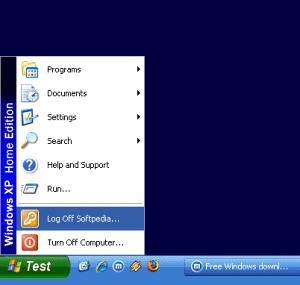
"StartBtn Renamer" is a simple utility for renaming the [Start] button under Windows XP. With this freeware tool, you can change default label of the [Start] button with your own text. This is great when you want to tease your friends or when you intend to have a greater variety in Windows...
"StartBtn Renamer" [also] is Open Source. This means that the source code of the program is presented with it, so that you could change it according to your own taste and wish, therefore you can add more possibilities on it (Any commercial use of this source code, without permission of the author is forbidden).
For more information about the Open Source theory, visit OpenSource.org.

HOW TO USE
Simply run the standalone program "StartBtn.exe" and then type your desirable label in the "New Label" field. By pressing the key, or clicking on the "Rename It" button, the [Start] button will rename with the new Label.

You can also rename the [Start] button by running the file "StartBtn.exe" from the MS-DOS command prompt. To do this, you must go the directory which you have been installed the application, use this sysnax to run the program.
  • Usage:
    StartBtn.exe NewLabel
    which NewLabel parameter is the new label for the [Start] button.

  • Example:
    StartBtn Begin
    Changes label of the [Start] to "ICT ZONE".

    This can be most useful when you want to rename the [Start] button at the Windows startup.
  • Download
    Download StartBtn Renamer
    newer post

    Monday, December 22, 2008

    Slax - your pocket operating system

    0 comments
    Slax is a modern, portable, small and fast Linux operating system with a modular approach and outstanding design. Despite its small size, Slax provides a wide collection of pre-installed software for daily use, including a well organized graphical user interface and useful recovery tools for system administrators.The modular approach gives you the ability to include any other software in Slax easily. If you're missing your favourite text editor, networking tool or game, simply download a module with the software and copy it to Slax, no need to install, no need to configure.If you are a beginner or you're just too busy to make it yourself, follow a few steps to build your own customized operating system by using web-based interface here.You can collect portable slax operating system for CD or flash drive.
    To download slax , Click Here
    newer post

    Saturday, December 13, 2008

    Run Command

    0 comments
    ..::: All Run Command Here :::...

    Some useful Run commands
    SOME USEFUL RUN COMMANDS !!!
    To access the RUN command prompt click START menu then click RUN

    These are Some below

    Add/Remove Programs - appwiz.cpl
    Administrative Tools - control admintools Automatic Updates - wuaucpl.cpl
    Bluetooth Transfer Wizard - fsquirt
    Calculator - calc
    Certificate Manager - certmgr.msc
    Character Map - charmap Check
    Disk Utility - chkdsk Clipboard
    Viewer - clipbrd Command Prompt - cmd
    Component Services - dcomcnfg
    Computer Management - compmgmt.msc
    Date and Time Properties - timedate.cpl
    DDE Shares - ddeshare
    Device Manager - devmgmt.msc
    Direct X Control Panel (If Installed)* - directx.cpl
    Direct X Troubleshooter - dxdiag Disk
    Cleanup Utility - cleanmgr
    Disk Defragment - dfrg.msc
    Disk Management - diskmgmt.msc
    Display Properties - desk.cpl
    Display Properties (w/Appearance Tab Preselected) - control color
    Dr. Watson System Troubleshooting Utility - drwtsn32
    Driver Verifier Utility - verifier
    Event Viewer - eventvwr.msc
    File Signature Verification Tool - sigverif
    Findfast - findfast.cpl
    Folders Properties - control folders
    Fonts - control fonts Fonts Folder - fonts
    Free Cell Card Game - freecell Game Controllers- joy.cpl
    Group Policy Editor (XP Prof) - gpedit.msc
    Hearts Card Game - mshearts
    Iexpress Wizard - iexpress
    Indexing Service - ciadv.msc I
    nternet Properties - inetcpl.cpl
    IP Configuration - ipconfig /all
    Java Control Panel (If Installed) - jpicpl32 Aug 31 Sourish
    Keyboard Properties - control keyboard Local Security Settings - secpol.msc
    Local Users and Groups - lusrmgr.msc
    Logs You Out Of Windows - logoff
    Microsoft Chat - winchat
    Minesweeper Game - winmine
    Mouse Properties - control mouse
    Mouse Properties - main.cpl
    Network Connections - control
    netconnections Network Connections - ncpa.cpl
    Network Setup Wizard - netsetup.cpl
    Notepad - notepad Nview
    Desktop Manager (If Installed) - nvtuicpl.cpl
    Object Packager - packager
    ODBC Data Source Administrator - odbccp32.cpl
    On Screen Keyboard - osk Opens AC3 Filter
    (If Installed) - ac3filter.cpl
    Password Properties - password.cpl
    Performance Monitor - perfmon.msc
    Performance Monitor - perfmon Phone and Modem Options - telephon.cpl
    Power Configuration - powercfg.cpl
    Regional Settings - intl.cpl
    Registry Editor - regedit
    Registry Editor - regedit32 Remote Desktop - mstsc
    Removable Storage - ntmsmgr.msc
    Removable Storage Operator Requests - ntmsoprq.msc
    Resultant Set of Policy (XP Prof) - rsop.msc
    Scanners and Cameras - sticpl.cpl
    Scheduled Tasks - control schedtasks Security Center - wscui.cpl
    Services - services.msc
    Shared Folders - fsmgmt.msc
    Shuts Down Windows - shutdown Sounds and Audio - mmsys.cpl
    Spider Solitare Card Game - spider SQL Client Configuration - cliconfg
    System Configuration Editor - sysedit
    System Configuration Utility - msconfig
    System Properties - sysdm.cpl
    Task Manager - taskmgr
    Telnet Client - telnet
    User Account Management - nusrmgr.cpl
    Utility Manager - utilman
    Windows Firewall - firewall.cpl
    Windows Magnifier - magnify
    Windows Management Infrastructure - wmimgmt.msc
    Windows System Security Tool - syskey
    Windows Update Launches - wupdmgr
    Windows XP Tour Wizard - tourstart
    Wordpad - write


    Ref: http://forum.polbd.com/viewtopic.php?id=74
    newer post

    Thursday, November 27, 2008

    Speed UP your Computer

    0 comments
    Speed UP your Computer

    http://zaicomp.com/wp-content/uploads/2011/05/The-8-Ways-To-Speed-Up-Computer.jpg
    Since defragging the disk won't do much to improve Windows XP performance, here are 23 suggestions that will. Each can enhance the performance and reliability of your customers' PCs. Best of all, most of them will cost you nothing.
    1.) To decrease a system's boot time and increase system performance, use the money you save by not buying defragmentation software -- the built-in Windows defragmenter works just fine -- and instead equip the computer with an Ultra-133 or Serial ATA hard drive with 8-MB cache buffer.
    2.) If a PC has less than 512 MB of RAM, add more memory. This is a relatively inexpensive and easy upgrade that can dramatically improve system performance.
    3.) Ensure that Windows XP is utilizing the NTFS file system. If you're not sure, here's how to check: First, double-click the My Computer icon, right-click on the C: Drive, then select Properties. Next, examine the File System type; if it says FAT32, then back-up any important data. Next, click Start, click Run, type CMD, and then click OK. At the prompt, type CONVERT C: /FS:NTFS and press the Enter key. This process may take a while; it's important that the computer be uninterrupted and virus-free. The file system used by the bootable drive will be either FAT32 or NTFS. I highly recommend NTFS for its superior security, reliability, and efficiency with larger disk drives.
    4.) Disable file indexing. The indexing service extracts information from documents and other files on the hard drive and creates a "searchable keyword index." As you can imagine, this process can be quite taxing on any system.The idea is that the user can search for a word, phrase, or property inside a document, should they have hundreds or thousands of documents and not know the file name of the document they want. Windows XP's built-in search functionality can still perform these kinds of searches without the Indexing service. It just takes longer. The OS has to open each file at the time of the request to help find what the user is looking for.Most people never need this feature of search. Those who do are typically in a large corporate environment where thousands of documents are located on at least one server. But if you're a typical system builder, most of your clients are small and medium businesses. And if your clients have no need for this search feature, I recommend disabling it.Here's how: First, double-click the My Computer icon. Next, right-click on the C: Drive, then select Properties. Uncheck "Allow Indexing Service to index this disk for fast file searching." Next, apply changes to "C: subfolders and files," and click OK. If a warning or error message appears (such as "Access is denied"), click the Ignore All button.
    5.) Update the PC's video and motherboard chipset drivers. Also, update and configure the BIOS. For more information on how to configure your BIOS properly, see this article on my site.
    6.) Empty the Windows Prefetch folder every three months or so. Windows XP can "prefetch" portions of data and applications that are used frequently. This makes processes appear to load faster when called upon by the user. That's fine. But over time, the prefetch folder may become overloaded with references to files and applications no longer in use. When that happens, Windows XP is wasting time, and slowing system performance, by pre-loading them. Nothing critical is in this folder, and the entire contents are safe to delete.
    7.) Once a month, run a disk cleanup. Here's how: Double-click the My Computer icon. Then right-click on the C: drive and select Properties. Click the Disk Cleanup button -- it's just to the right of the Capacity pie graph -- and delete all temporary files.
    8.) In your Device Manager, double-click on the IDE ATA/ATAPI Controllers device, and ensure that DMA is enabled for each drive you have connected to the Primary and Secondary controller. Do this by double-clicking on Primary IDE Channel. Then click the Advanced Settings tab. Ensure the Transfer Mode is set to "DMA if available" for both Device 0 and Device 1. Then repeat this process with the Secondary IDE Channel.
    9.) Upgrade the cabling. As hard-drive technology improves, the cabling requirements to achieve these performance boosts have become more stringent. Be sure to use 80-wire Ultra-133 cables on all of your IDE devices with the connectors properly assigned to the matching Master/Slave/Motherboard sockets. A single device must be at the end of the cable; connecting a single drive to the middle connector on a ribbon cable will cause signaling problems. With Ultra DMA hard drives, these signaling problems will prevent the drive from performing at its maximum potential. Also, because these cables inherently support "cable select," the location of each drive on the cable is important. For these reasons, the cable is designed so drive positioning is explicitly clear.
    10.) Remove all spyware from the computer. Use free programs such as AdAware by Lavasoft or SpyBot Search & Destroy. Once these programs are installed, be sure to check for and download any updates before starting your search. Anything either program finds can be safely removed. Any free software that requires spyware to run will no longer function once the spyware portion has been removed; if your customer really wants the program even though it contains spyware, simply reinstall it. For more information on removing Spyware visit this Web Pro News page.
    11.) Remove any unnecessary programs and/or items from Windows Startup routine using the MSCONFIG utility. Here's how: First, click Start, click Run, type MSCONFIG, and click OK. Click the StartUp tab, then uncheck any items you don't want to start when Windows starts. Unsure what some items are? Visit the WinTasks Process Library. It contains known system processes, applications, as well as spyware references and explanations. Or quickly identify them by searching for the filenames using Google or another Web search engine.
    12.) Remove any unnecessary or unused programs from the Add/Remove Programs section of the Control Panel.
    13.) Turn off any and all unnecessary animations, and disable active desktop. In fact, for optimal performance, turn off all animations. Windows XP offers many different settings in this area. Here's how to do it: First click on the System icon in the Control Panel. Next, click on the Advanced tab. Select the Settings button located under Performance. Feel free to play around with the options offered here, as nothing you can change will alter the reliability of the computer -- only its responsiveness.
    14.) If your customer is an advanced user who is comfortable editing their registry, try some of the performance registry tweaks offered at Tweak XP.
    15.) Visit Microsoft's Windows update site regularly, and download all updates labeled Critical. Download any optional updates at your discretion.
    16.) Update the customer's anti-virus software on a weekly, even daily, basis. Make sure they have only one anti-virus software package installed. Mixing anti-virus software is a sure way to spell disaster for performance and reliability.
    17.) Make sure the customer has fewer than 500 type fonts installed on their computer. The more fonts they have, the slower the system will become. While Windows XP handles fonts much more efficiently than did the previous versions of Windows, too many fonts -- that is, anything over 500 -- will noticeably tax the system.
    18.) Do not partition the hard drive. Windows XP's NTFS file system runs more efficiently on one large partition. The data is no safer on a separate partition, and a reformat is never necessary to reinstall an operating system. The same excuses people offer for using partitions apply to using a folder instead. For example, instead of putting all your data on the D: drive, put it in a folder called "D drive." You'll achieve the same organizational benefits that a separate partition offers, but without the degradation in system performance. Also, your free space won't be limited by the size of the partition; instead, it will be limited by the size of the entire hard drive. This means you won't need to resize any partitions, ever. That task can be time-consuming and also can result in lost data.
    19.) Check the system's RAM to ensure it is operating properly. I recommend using a free program called MemTest86. The download will make a bootable CD or diskette (your choice), which will run 10 extensive tests on the PC's memory automatically after you boot to the disk you created. Allow all tests to run until at least three passes of the 10 tests are completed. If the program encounters any errors, turn off and unplug the computer, remove a stick of memory (assuming you have more than one), and run the test again. Remember, bad memory cannot be repaired, but only replaced.
    20.) If the PC has a CD or DVD recorder, check the drive manufacturer's Web site for updated firmware. In some cases you'll be able to upgrade the recorder to a faster speed. Best of all, it's free.
    21.) Disable unnecessary services. Windows XP loads a lot of services that your customer most likely does not need. To determine which services you can disable for your client, visit the Black Viper site for Windows XP configurations.
    22.) If you're sick of a single Windows Explorer window crashing and then taking the rest of your OS down with it, then follow this tip: open My Computer, click on Tools, then Folder Options. Now click on the View tab. Scroll down to "Launch folder windows in a separate process," and enable this option. You'll have to reboot your machine for this option to take effect.
    23.) At least once a year, open the computer's cases and blow out all the dust and debris. While you're in there, check that all the fans are turning properly. Also inspect the motherboard capacitors for bulging or leaks. For more information on this leaking-capacitor phenomena, you can read numerous articles on my site.
    Following any of these suggestions should result in noticeable improvements to the performance and reliability of your customers' computers. If you still want to defrag a disk, remember that the main benefit will be to make your data more retrievable in the event of a crashed drive.
    newer post

    Tuesday, November 25, 2008

    Protect USB Pen-Drive

    0 comments
    USB Pen Drive Protector
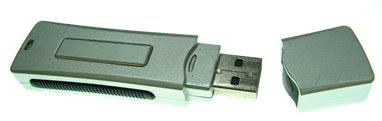
    Do you use a Pen-Drive for transferring data across different systems in your office/network, then there is a high possibility of virus infections for transferring across with the pen-drive as a medium.Here are collection of freeware tools that you could as your first line of defense before using your pen drive on other systems.

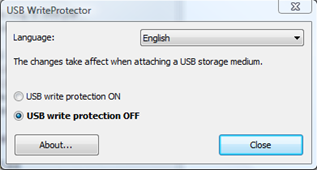
    USB Write Protector –This freeware application prevents write access to a USB drives. This will protect USB drives from viruses, malwares, spywares etc.Using this tool you can just copy data from your pendrive to the system but not copy data into the pen drive from the client system.Its only 190 KB and works with XP with SP2.


    HomePage Download
    newer post

    protect PEN DRIVE from Virus

    0 comments
    How to protect PEN DRIVE from Virus


    Now a days pen drive has become as mendatory to have wather you are having PC ar not , Early days pen was only thing which we you to carry but know time has changed along with that we carry Pen Drive.
    What is Pen Drive? Now this questions come into our mind. Actualy pen drive is a device which contain a chip (memory) which store all the data in it or we can call removable Hard Disk of Computer.
    This is used to transfer data from one computer to another.

    But Now big problem is that It is also becoming dangerious for the PCs , because in large amount it is affected by the virus. This virus is very hurmful it can damge all the data's of computer or some virus's are so dangerious it can damage Hard Disk also.
    Don't be panic, Here I am going to show you how you can save or protect your PEN DRIVE from Virus. Just simply follow this steps in your computer and you will ammaged to see it.


    Ok Let us try to solve it

    Just insert your pen drive in the USB port, now a autorun window(usually it includes Open to view Files andTake no action options) will open to choose the program that will run your pen drive but just ignore it by clicking the Cancel button right after the OK button

    Then --------
    STEP 1.
    Open your Computer or Laptop, Click on START then go to RUN then type CMD now check the letter of your pen drive (eg. H:)

    STEP 2. In the command promt now type H: and press ENTER

    STEP 3. Now Type dir/w/o/a/p and press ENTER, now you will get list of file. Check this file for "Autorun.inf, new folder.exe, bha.vbs,explore.vbs, info.exe, ravon.exe,ravon.exe, mntdrcore.exe,rvhost.exe or other exe file extention.

    STEP 4. If you found any of the above file then run the command [attrib -h -r -s -a*.* ] in comman promt and then press Enter

    STEP 5. Now Delete each file one by one using del file name eg. del autorun.inf .

    STEP 6. Now scan your pen drive from any anti-virus, Now you will find that your pen drive does't get affected from virus.
    newer post

    Friday, November 21, 2008

    DAP Premium 8.7 Free

    0 comments
    Download Accelerator Plus Premium 8.7

    Download From Here

    Download Accelerator Plus (DAP) is the world's leading download manager, allows you to download up to 300% faster* with increased reliability, resume support and errors recovery. It searches for mirror sites that most effectively serve your downloads through multiserver connections for optimal utilization of dial-up or broadband connections. DAP automatically recovers from shutdowns, lost connections, and other errors. It is fully integrated into Netscape, Internet Explorer, and Opera, Mozilla/Firefox and offers a toolbar for Internet Explorer with a links catcher and a highlighter, providing the best possible performance from ANY Internet connection (dial-up, cable, DSL / ADSL, T1 etc.), allowing a Faster and more Reliable download experience. It features auto-hang-up after downloading, proxy settings, scheduling, and a unique AlwaysResume service.

    Features:
    - Preview pane
    – Preview downloads of Music and Video files
    - Download list
    - Advanced management of downloads queues, priorities and statuses
    - File Information pane
    – Advanced information of downloaded files and sources
    - Completed downloads list
    – Separate list of completed downloads
    - DAP Drive integration
    – Save downloads and Upload files to DAP Drive web storage
    - Media Center Tab
    – Conveniently manage your media files
    - Superior Usability
    – New interface with flexible design options
    - Integrates with all browsers
    – Internet Explorer, Netscape, Opera, Mozilla/Firefox

    Download Accelerator Plus registered version includes:
    - Zip Extract
    - download & extract specific files from zip archive
    - Removal of the Banner Advertisement within the application
    - DAP Skin Selection
    - Management of site passwords and other relevant info (unlimited)
    - Tray icon minimization while downloading
    - Prioritized technical support
    - Extreme acceleration speed
    - for faster download rate

    Only with DAP Premium:
    - Extremely faster
    - x10 connections per download!
    - Absolutely no advertisements!
    - Totally customized download experience!
    - Shredder to totally eliminate files you don't need!
    - Trace Cleaner -keep your privacy after browsing!
    - Preview & extract zip files while downloading!
    - Cool new look, more comfortable management features!
    newer post

    Tuesday, November 18, 2008

    Hack Windows XP Password

    0 comments
    “Hack Windows XP Password”

    Another method to login to a password protected Windows even if you do not have the password is by making Windows accepting any passwords.

    There is a far better way to get into Windows XP. It is easy and it does not reset the password. Hack into a computer running Windows XP without changing the password and find out all and any passwords on the machine (including admin accounts). You do not need access to any accounts to do this. Of course, do not do this on anyone elses computer without proper authorisation.


    Steps to Hack into a Windows XP Computer without changing password:

    1. Get physical access to the machine. Remember that it must have a CD or DVD drive.

    2. Download DreamPackPL HERE.

    3. Unzip the downloaded dpl.zip and you’ll get dpl.ISO.

    4. Use any burning program that can burn ISO images.

    5. After you have the disk, boot from the CD or DVD drive. You will see Windows 2000 Setup and it will load some files.

    6. Press “R” to install DreamPackPL.

    7. Press “C” to install DreamPackPL by using the recovery console.

    8. Select the Windows installation that is currently on the computer (Normally is “1″ if you only have one Windows installed)

    9. Backup your original sfcfiles.dll by typing:“ren C:WindowsSystem32sfcfiles.dll sfcfiles.lld” (without quotes)

    10. Copy the hacked file from CD to system32 folder. Type:“copy D:i386pinball.ex_ C:WindowsSystem32sfcfiles.dll” (without quotes and assuming your CD drive is D:)

    11. Type “exit”, take out disk and reboot.

    12. In the password field, type “dreamon” (without quotes) and DreamPack menu will appear.

    13. Click the top graphic on the DreamPack menu and you will get a menu popup.

    14. Go to commands and enable the options and enable the god command.

    15. Type “god” in the password field to get in Windows.You can also go to Passwords and select “Logon with wrong password and hash”. This option allows you to login with ANY password.

    Note: I was unable to bring up the DreamPackPL for the first time because I have Kaspersky Anti-Virus already running in background. I believe most antivirus already labelled this tool as a Hack-Tool. A Hack-Tool is NOT a virus. DreamPackPL helps you bypass the Windows Login screen and it is not destructive.

    newer post

    Monday, November 17, 2008

    Shutdown Computer with a Phone

    0 comments
    Shutdown your Computer with a Cell Phone

    It is real. See the video and try..........


    newer post
    newer post older post Home

    Delete this element to display blogger navbar